|
To change the size of an image file, click on he "Resize/Resample" button
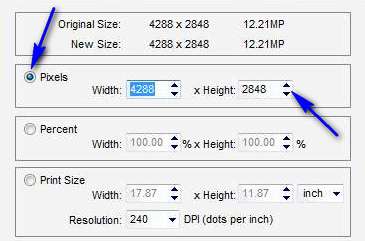
There are 4 ways to make the change, by changing the pixels, percent, print size, or by choose a standard size. For the top 3, choose the method you prefer by clicking on the radio button, then make the change increasing or decreasing the number in the box by using the up and down arrows.
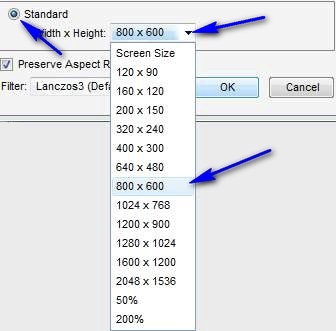
To choose a standard size, click the radio button, then click the drop down menu and click a size.
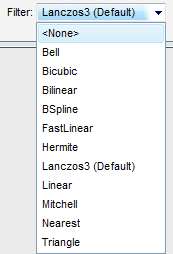
If you want the image to not be distorted by stretching either vertically or horizontally, click the "Preserve Aspect Ratio" check box There are several algorithms that the computer can use to make this change, called filters. I am not familiar with them so I leave the bottom most box set on the default.
After you have made your selections, click "OK". Suggested next choices:
|
Sponsored Advertisements:
Sponsored Advertisements: |
 to get the dialog box: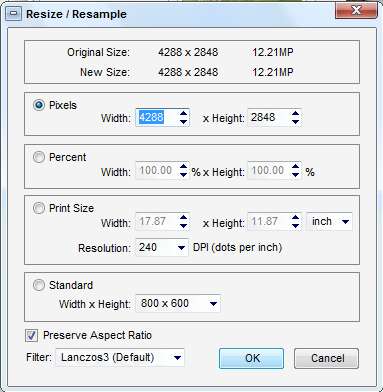
 . If you want stretching distortion, uncheck the box.