If you find our tips useful, please support us by visiting the Sponsored Links.
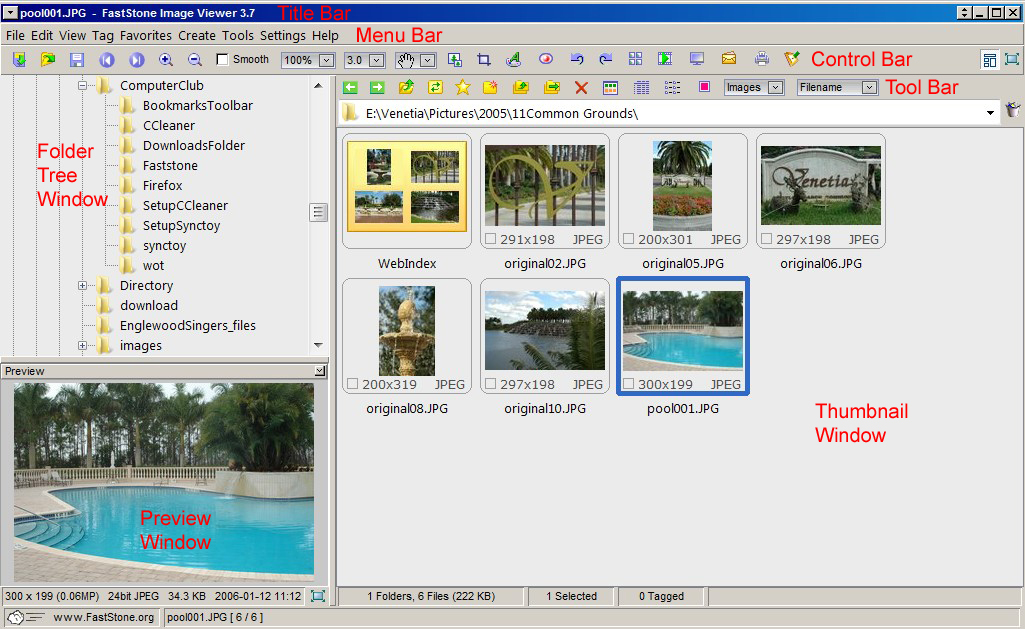
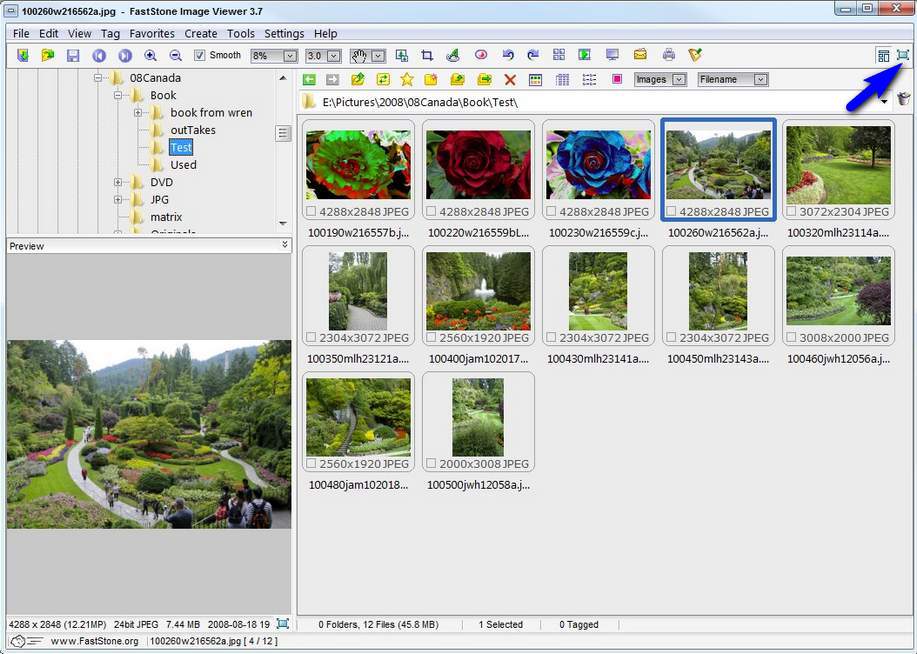
In FastStone, the main view is the Browser View. There are 4 Bars, 3 Windows and lots of buttons:
There are 3 ways to view an image:
Sponsored Links:
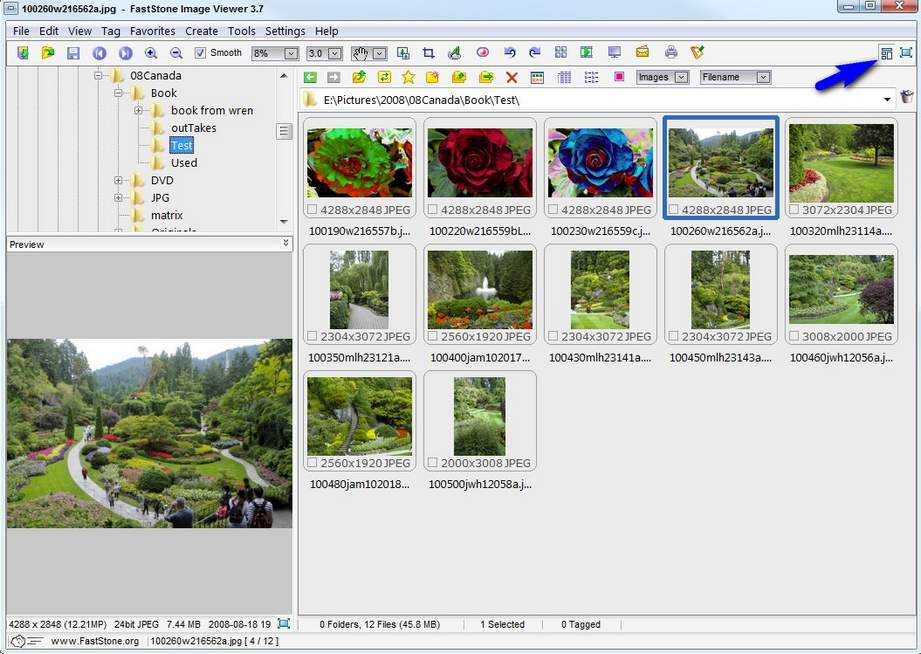
The Browser View as shown below.
To switch to the Windowed View (which I never use) click the "Switch to Windowed View" button:
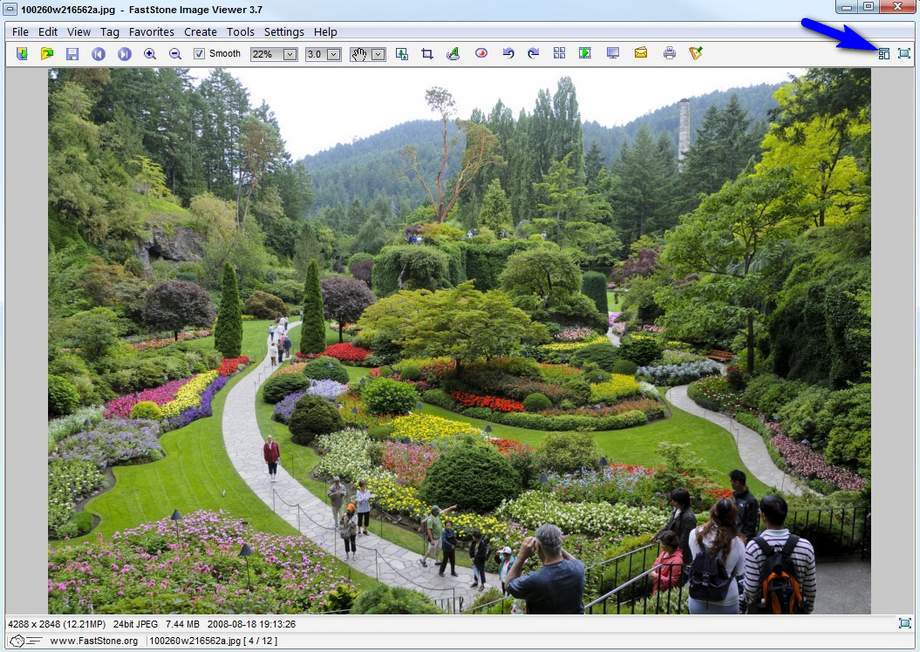
The Windowed View as shown below.
To switch to the browser view click the "Switch to Browser View" button:
To switch to full screen view, double click on and image or select an image and click the full screen button:
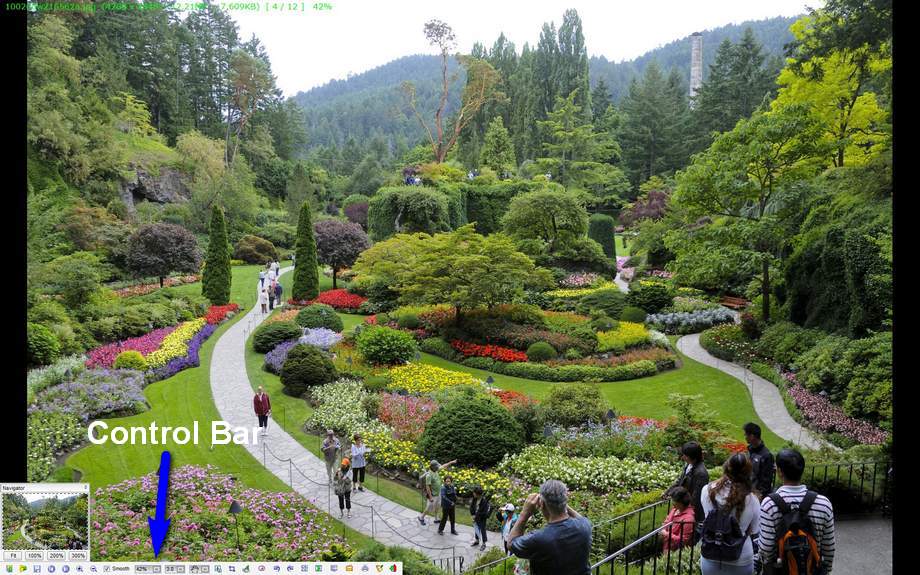
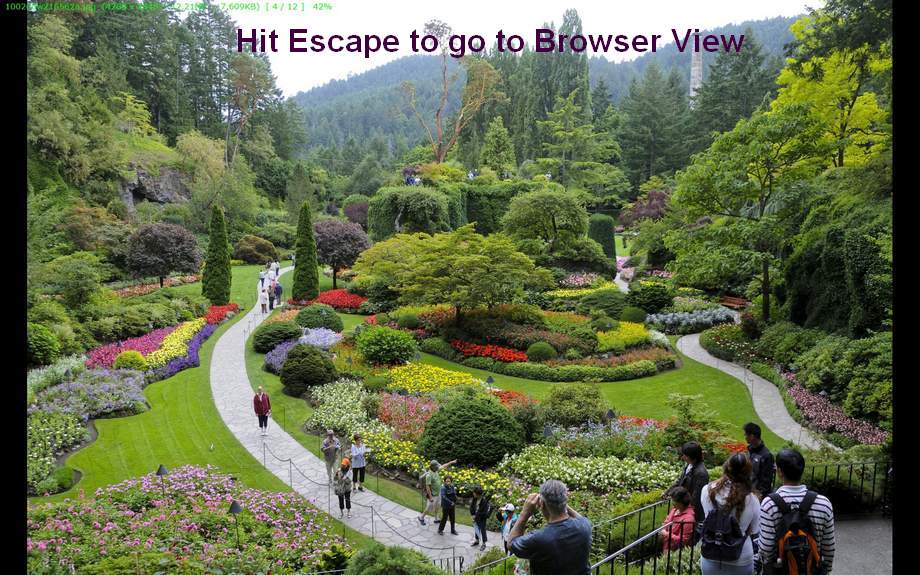
The full screen view (which is very useful) is shown below:
To return to Browser View hit the escape key.
There are 4 useful features in Full Screen View:
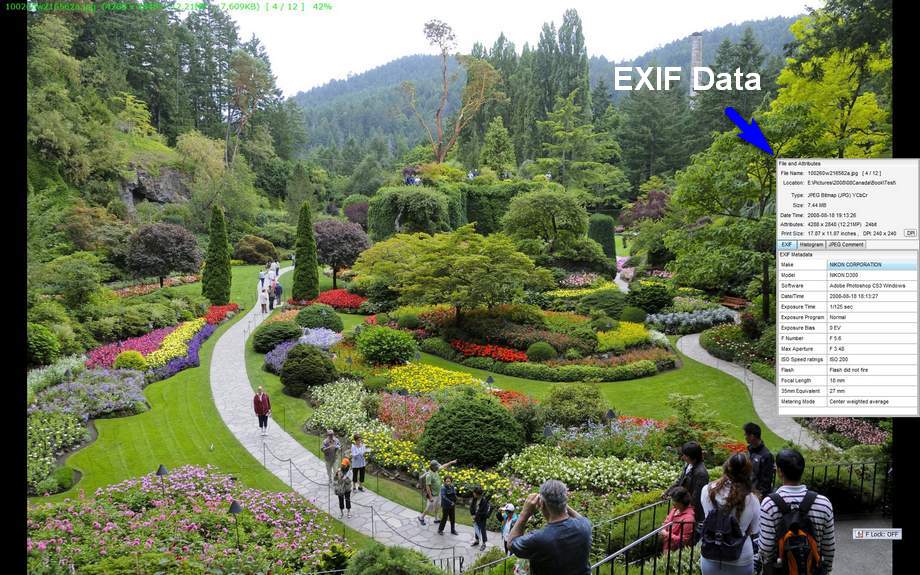
Move the cursor to the far right side of the screen to view EXIF data, including when the image was taken, by what camera, what the camera settings were etc.
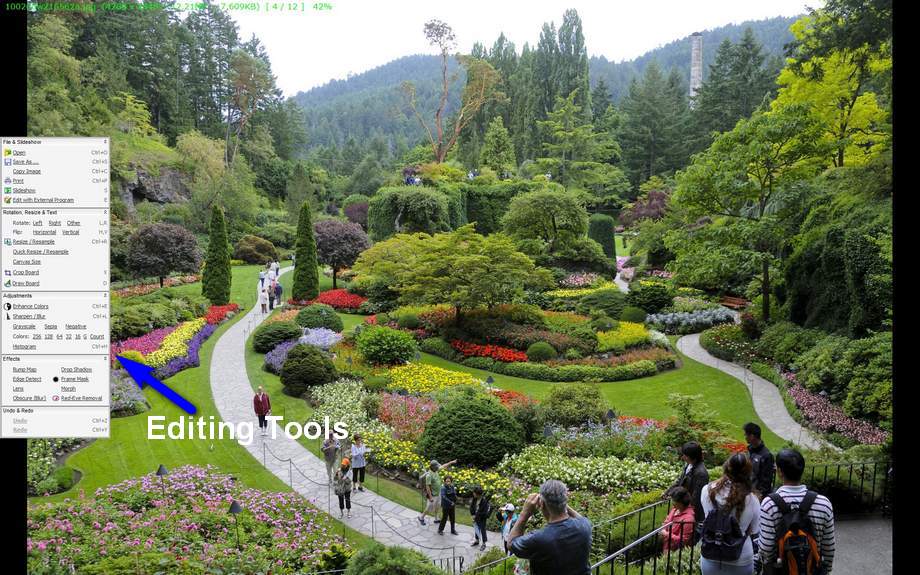
Move the cursor to the far left side of the screen to view editing tools, including cropping, red eye removal, rotating etc.
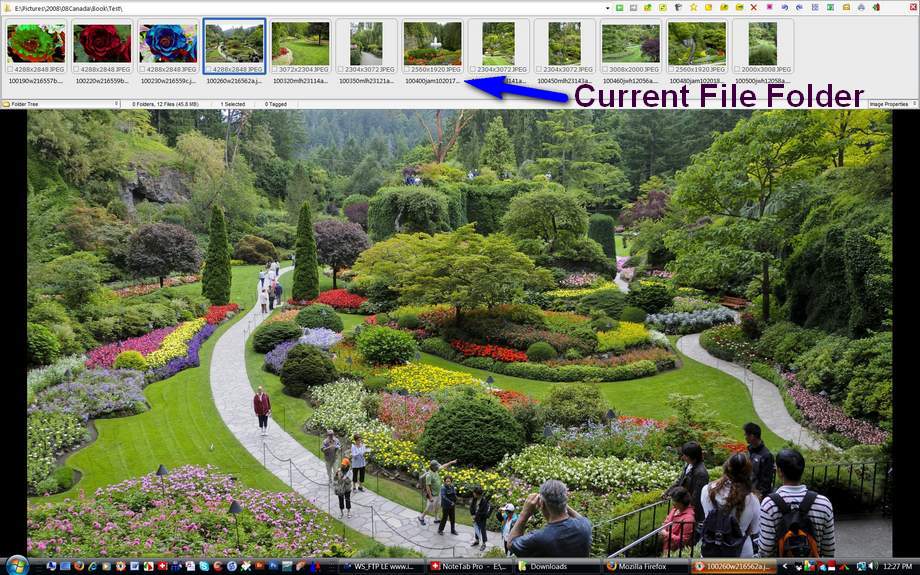
Move the cursor to the top of the screen to view the other images that are in the current file folder
">
Move the cursor to the bottom of the screen to view the same buttons that are on the Control Bar of the Browser View:

 ">
">