ImagingTips.com

Windows Live

by Wren McMains

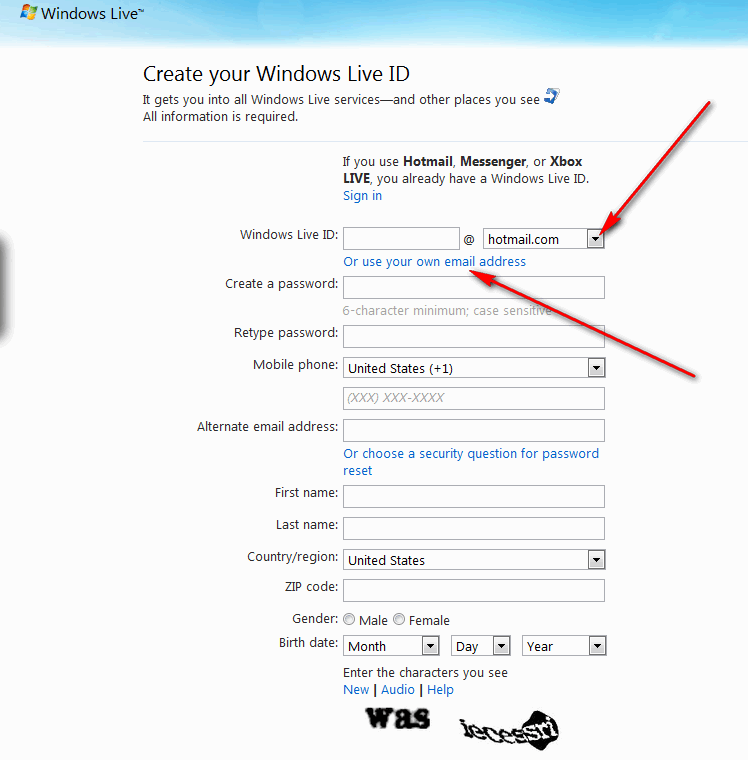
Windows Live is Microsoft's internet extension to the Windows operating system on your PC. Access is via http://home.live.com ... you need an account, but if you have an account at MSN, Hotmail, or other Microsoft site you already have one.

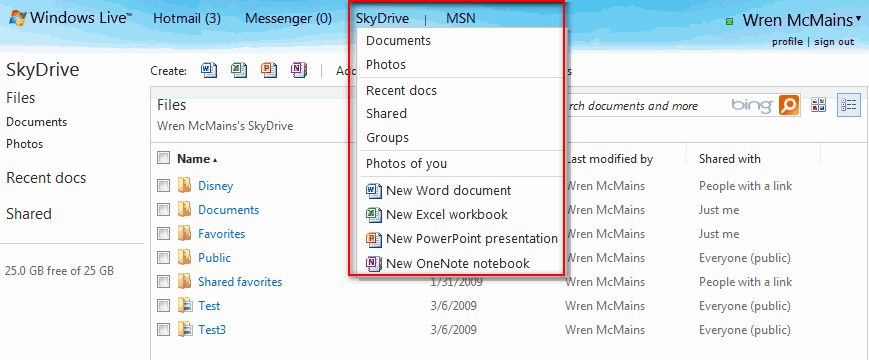
Some people like Live Mail because it allows you to access several different e-mail accounts at once, but I prefer Gmail. The reason I recommend Windows Live if that it gives you 25GB of free on-line storage to use any way you want. This storage is called your "SkyDrive" and access is via the drop-down next to "More":

SkyDrive

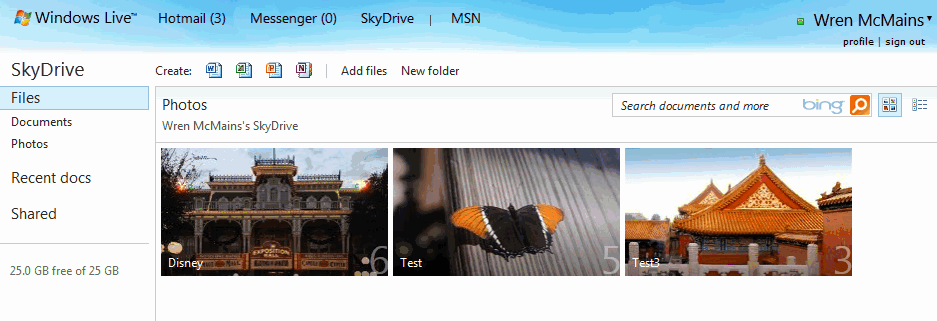
You create folders on your SkyDrive and share them with others as you see fit. You can also the "Photo Albums" feature of Windows Live (next to "More"), but any Albums you create are just other folders on your SkyDrive.

It's not hard to upload files to your SkyDrive; the only limit is that individual files cannot exceed 50MB in size, but that's bigger than the size of your highest resolution images, or enough for a short video.

If you're just uploading pictures, you may find it easier to use the "Live Photo Gallery" program (I've never used it, but have seen it demoed ... it uses the term "publish" to mean upload the selected photos to a Windows Live Photo Album). You can get Live Photo Gallery from http://download.live.com:

Photo Gallery

When creating folders, or Photo Albums, on your SkyDrive I recommend you choose the option "Just Me" from the "Share with" pull-down:

Share with

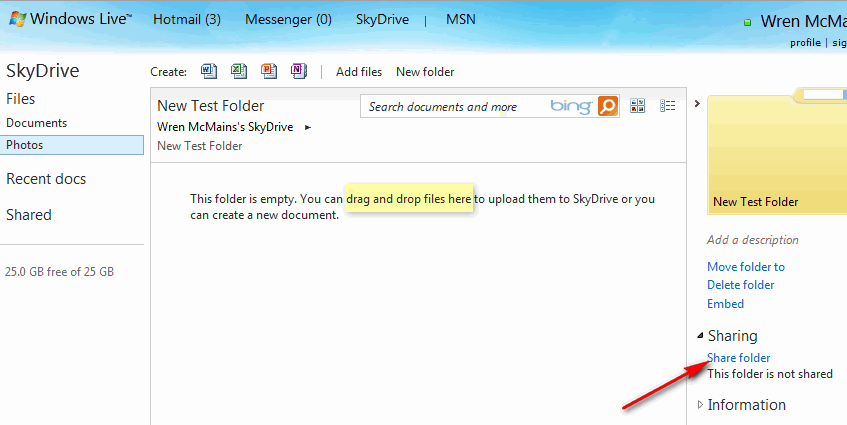
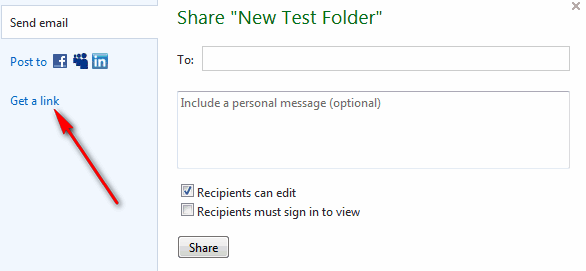
Once you've uploaded files or photos to the folder, you can then share the folder by choosing "Send a link" from the second "More" pull-down (not to be confused with the "More" pull-down just above it):

Send Link

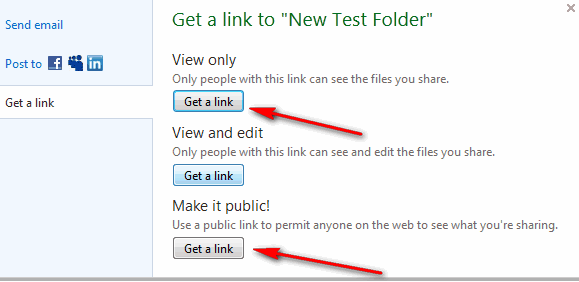
I recommend you send this link to yourself, not the person you're sharing it with. I recommend this because people find the message Windows Live sends confusing, people seem to miss the fact that the big orange thing in the middle of the message is the button you have to click on to get to the folder you've shared:

Message

Once you get the message, right-click on the orange button and choose "Copy Link Location" (or "Copy Shortcut" in IE8), which puts link on your clipboard. Then just paste the link into your own e-mail that you send to your friend. You'll notice that the link (which is repeated under "Having trouble ..." in the message above) has an "authkey" which is the password allowing the person who receives the link to view the folder without being one of your friends on Live, and without even having a Live account.

Tip for uploading files using your browser:

There is an international committee that sets the standards for HTML, the "language" web pages are written in. One of my complaints about Microsoft is that they think they're so big they don't need to follow standards. They have a representative on the committee, and any good idea they have could/would be adopted by the committee, so why don't they follow the standards? They seem to think they set the standards and everyone should follow them.

Windows Live seems to be another place they are not following standards. When you go to upload photos, if you see "Browse" buttons like this:

Browse

It's just a case if Microsoft trying to force you to use their browser, Internet Explorer. Using Internet explorer, you see:

Install Upload

After you install the upload tool, you'll see something like this:

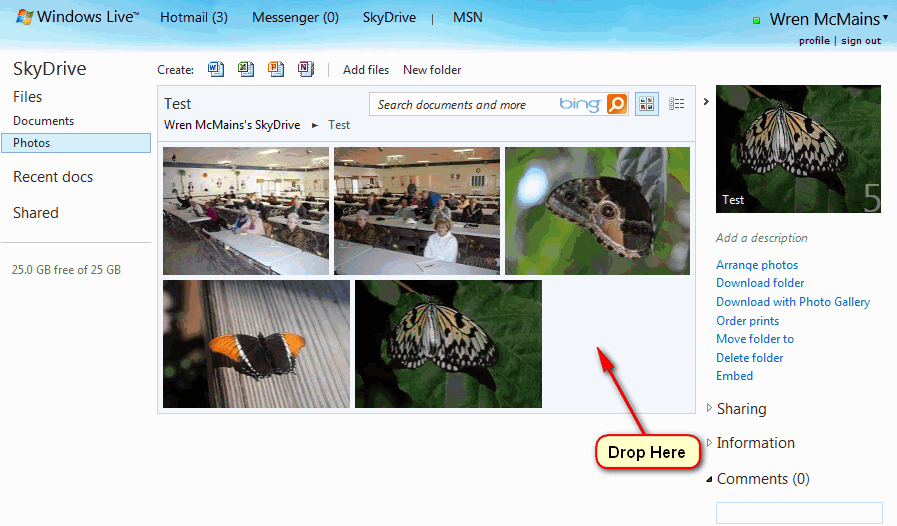
drop files

Allowing you to drag-and-drop photos or files into a SkyDrive folder. I highly recommend Firefox as a browser (see my tips on using Firefox). To be able to drag-and-drop files to your SkyDrive using Firefox, install the add-on named "IE Tab". Go to Tools/Add-ins and then the "Get Add-ons" tab:

get add-ons

Note: All these steps only need to be done ONCE. If done correctly Firefox will always use IE to render the contents of SkyDrive pages.

Type "IE Tab" in the search box and press Enter, or click on the search button (which looks like a magnifying glass). If it doesn't show up, you might need to click on "See all results":

IE Tab

I see there are two versions. I've been using the second one written by PCMan in Taiwan, but maybe I should consider trying the first one which has other features that look good. Whichever one you choose, click on "Add to Firefox" (above); you should then get another dialog box, click on "Install":

x

Next it should say "Install Complete", but you then have to click on the "Restart Firefox" button to activate it.

Restart

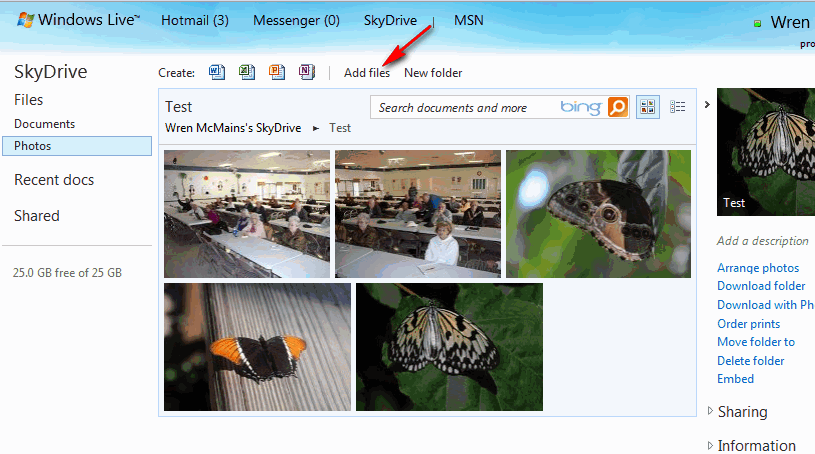
Once you download and install the add-in (and restart Firefox), go back to the "Add photos" or "Add files" page in Windows Live. If you were already there, Firefox should reload the page when it re-starts.

While viewing the page with the "Browse" buttons, choose "IE Tab Options" from the Tools pull-down:

Options

This brings up a dialog box with the URL of the current page filled in.

url

However, you want to use IE (Internet Explorer) to display any SkyDrive page, not just this one; so change the page identifier to an asterisk and click "Add":

asterisk

Next click "Apply" and "OK" (you probably only have to click "OK", but clicking "Apply" first never hurts):

ok

Now the page looks just like it would have in Internet Explorer, but you still have to "Install the upload tool", just like you would have in IE:

upload

Click on the "Install the upload tool" line (above) and you'll get:

upload

Click on "Run" and you'll get:

run

Click "Run" again. Finally the page will look like this:

drop

Now you can just drag-and-drop files from any windows folder into the box. Note that if you are uploading photos, there is a pull-down choice in the upper right:

size

By default it will resize photos to 1600 pixels along the longest side. If you really want to upload the original high-resolution file you have to choose that option.

You can continue to drop more files into the box with the dotted outline, but once you have added all the files you want to upload you need to click on the "Upload" button:

upload


Suggested next choices:

ImagingTips.com Site Map
Copyright Wren McMains, 2009
[an error occurred while processing this directive]