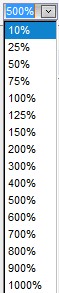
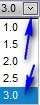
The Control Bar is located in two places:
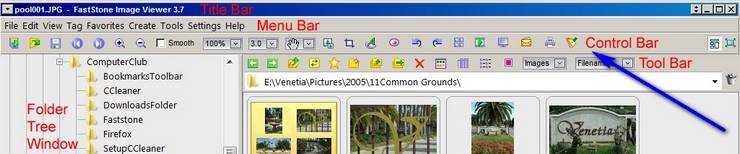
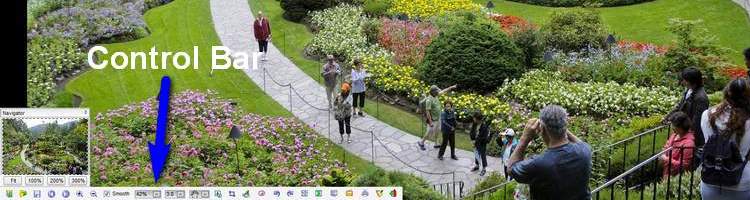
It looks like this (click on any button below to jump to it's description):


 Click on any Control Bar Button above to jump to its description.
|
Sponsored Advertisements:
Sponsored Advertisements: Sponsored Advertisements: |
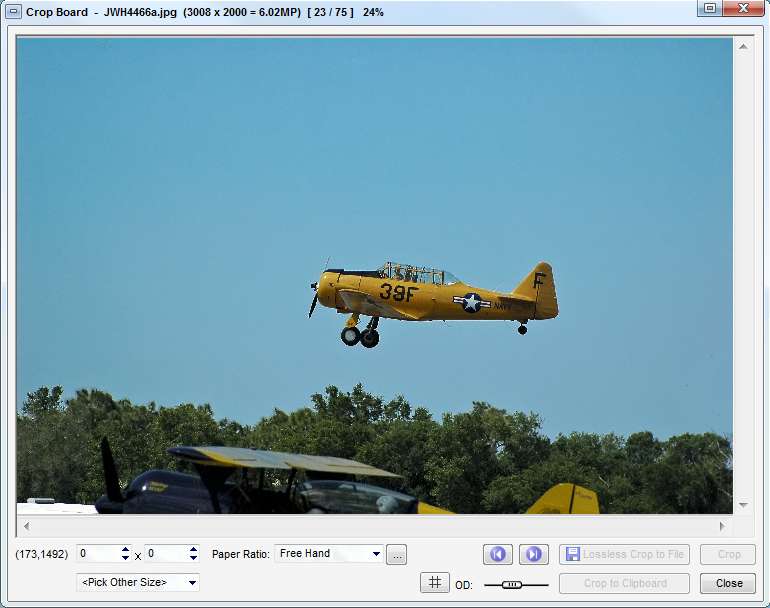
Crop BoardTo cut out a rectanglular area of the image use the Crop Board.
For more information click here.
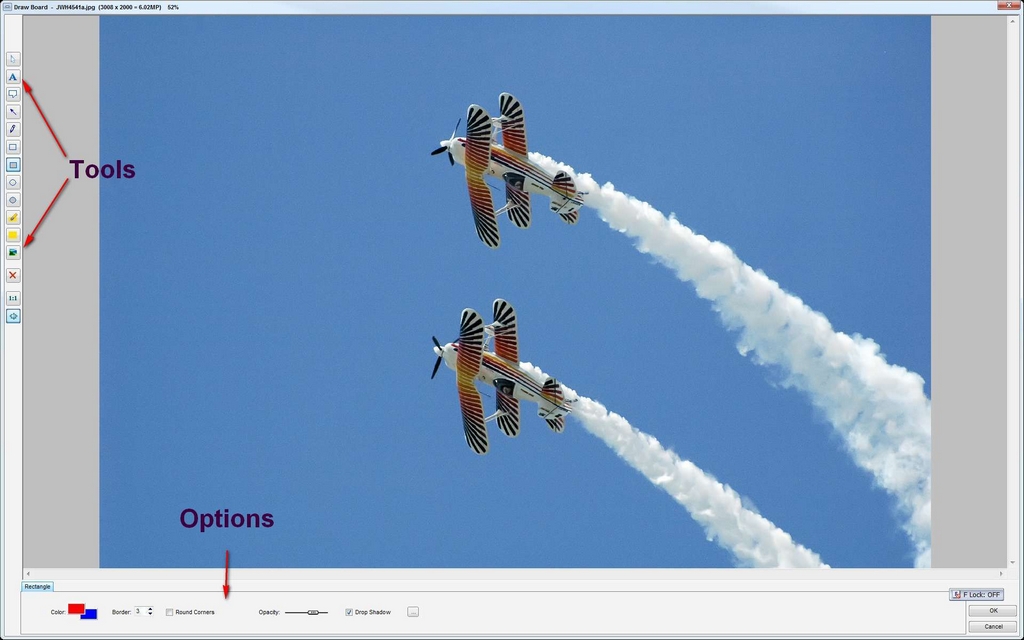
Draw BoardTo annotate an image by adding text, arrows, thought/speech bubbles, etc. use the Draw Board.
For more information click here.
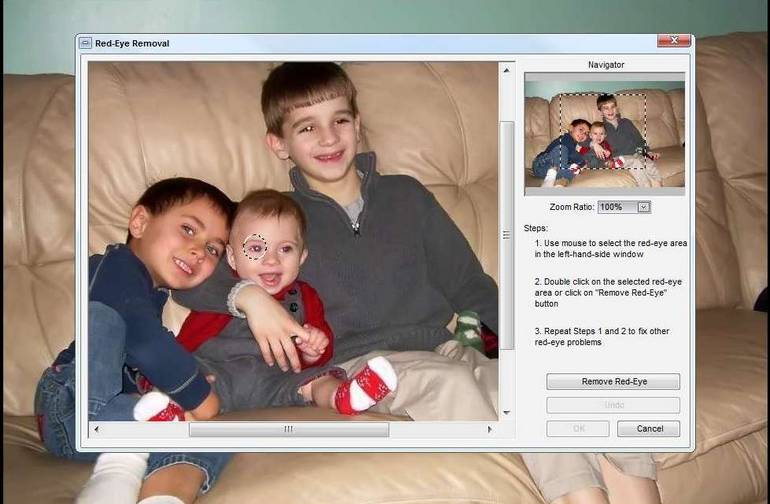
Red-Eye RemovalClick on the center of the eye and drag outward to select the red area. It doesn't matter if the selection is a little bigger than the eyeball, but be sure all the red is selected. Once the circle is drawn it can be repositioned by clicking and dragging. Double click on the selected area or click  button. Scroll mouse wheel to zoom in or out, or use the Ctrl+ the Plus or Minus key. Click right mouse button and drag to pan, or use the scroll bars.
RotateIn the browser view, select an image or images and click on the appropriate rotate button to rotate the image 90 degrees clockwise or counter clockwise. In windowed or full screen view, just click the appropriate button.
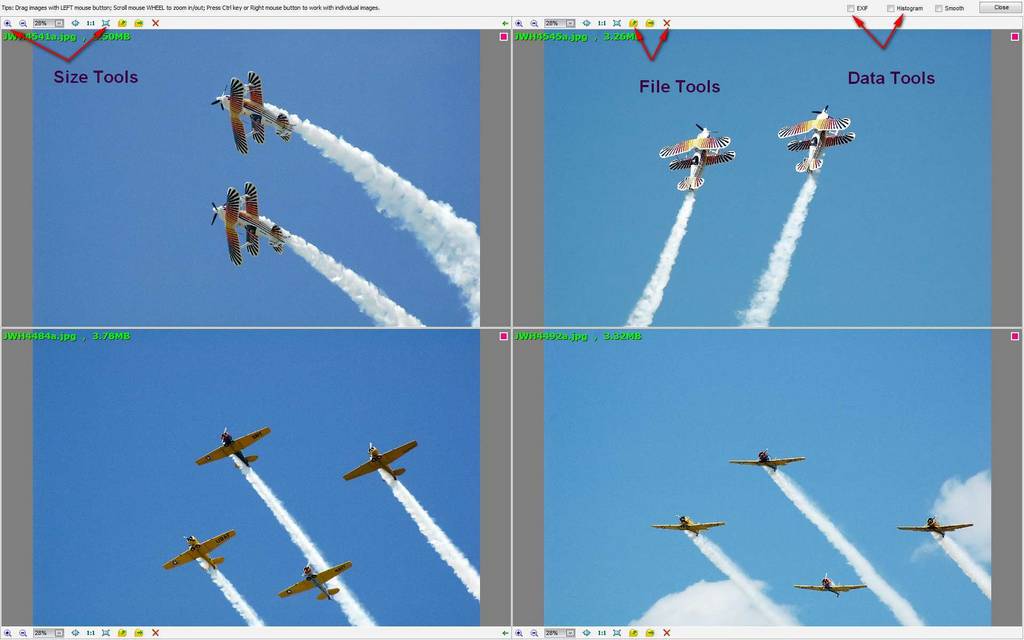
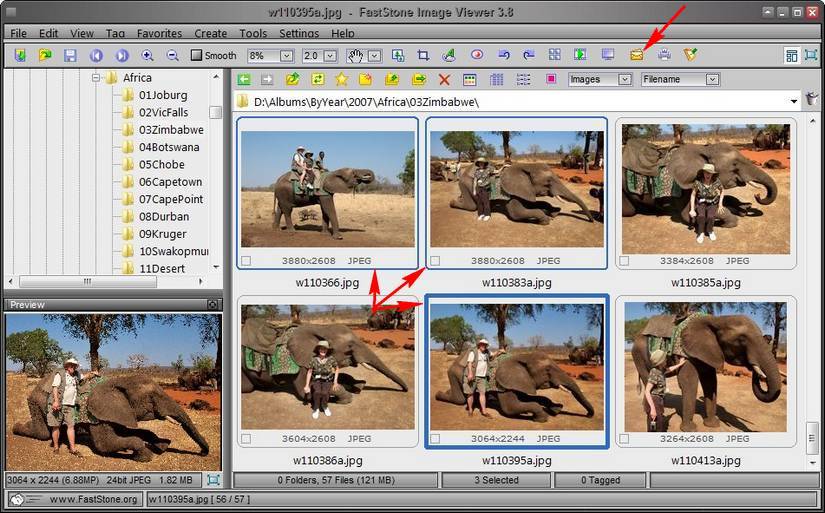
Compare Selected ImagesIt is easier to compare images when they can be seen side by side. Select two to four images and click the "Compare Selected Images" button. For more information click here.
Slideshow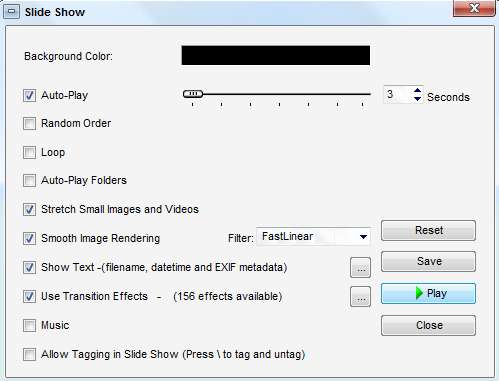
Screen Capture Email Selected ImagesTo Email resized and compressed images, select them and click on the Email icon .
For more information click here.
Print Selected ImagesCheck Back Later
SettingsClick for details on FastStone Settings
Suggested next choices:
 will select the previous file, and the "Next" button
  will select the next file. In windowed and full screeen views the previous or next file will be opened.
 will make the image appear larger and the "Zoom Out" button
  will make the image appear smaller.